How to make a presentation with AI in minutes
The Presentations agent builds a full deck of 16:9 slides in one consistent style. It first proposes the outline of your talk as a table, then draws every slide as a finished image and ends with speaker notes telling you what to say out loud. You talk to it in plain words, no prior experience with AI required.
Updated: August 10, 2026
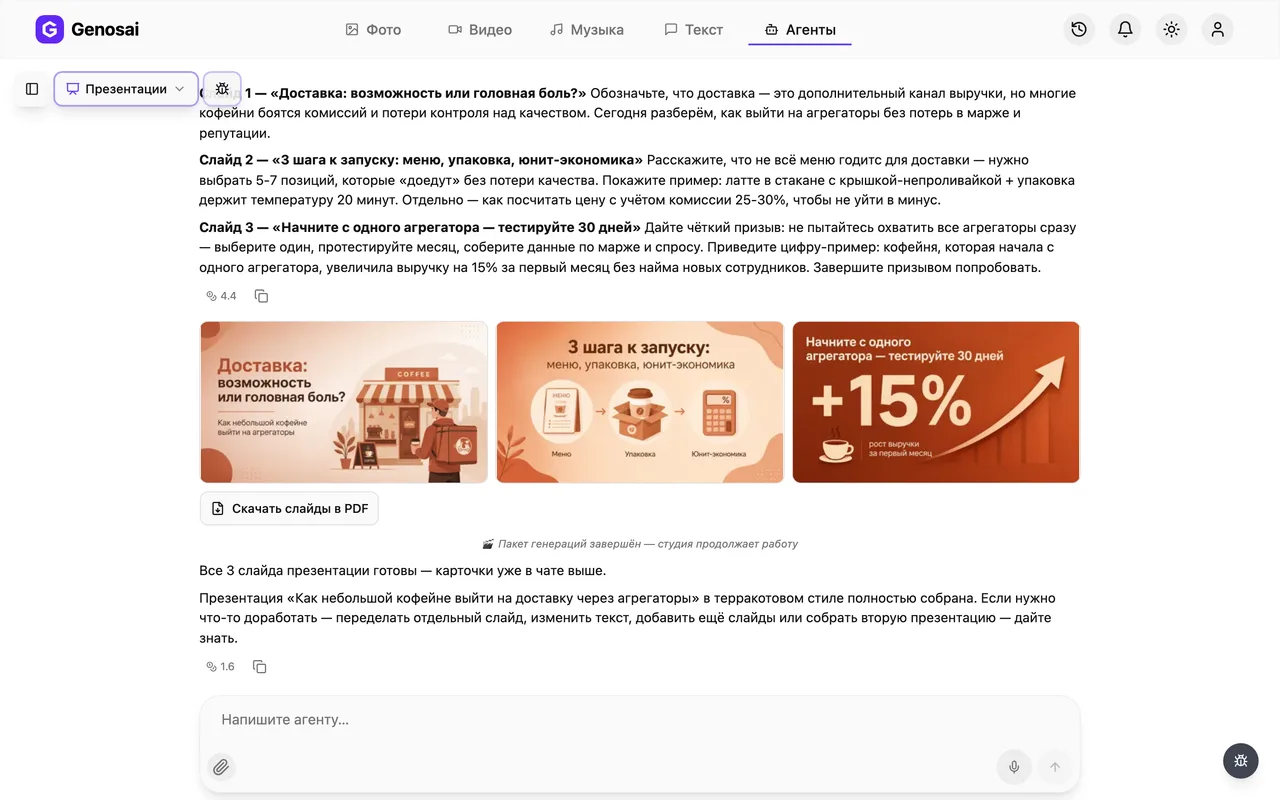
- Outline first, slides later — The agent shows the flow of your talk as a table and edits it with you until every slide makes sense.
- One consistent visual style — All slides share the same palette, background and illustration style, so the deck looks designed rather than assembled.
- Up to 100 slides at once — One session covers both a short eight slide talk and a full training deck of up to one hundred slides.
- Speaker notes included — For each slide the agent writes what to say out loud, not a copy of the text already printed on the slide.
- Cost shown before payment — An estimate card appears before anything is drawn. Nothing leaves your balance until you press the confirm button.
- Ready to present 16:9 — Slides arrive as 16:9 images you can show on a projector, share in Zoom or drop into PowerPoint one by one.
What it produced



Step-by-step guide
1. Step 1. Create your account
Open Genosai and sign up with your email or a one click login. New accounts get starter credits, so your first small deck can be built right away. No card details are needed at this point.

2. Step 2. Open the studio
After signing in you land in the studio. At the top there is an Agents tab, a shelf of ready made assistants for specific jobs. Click it to see the full list.
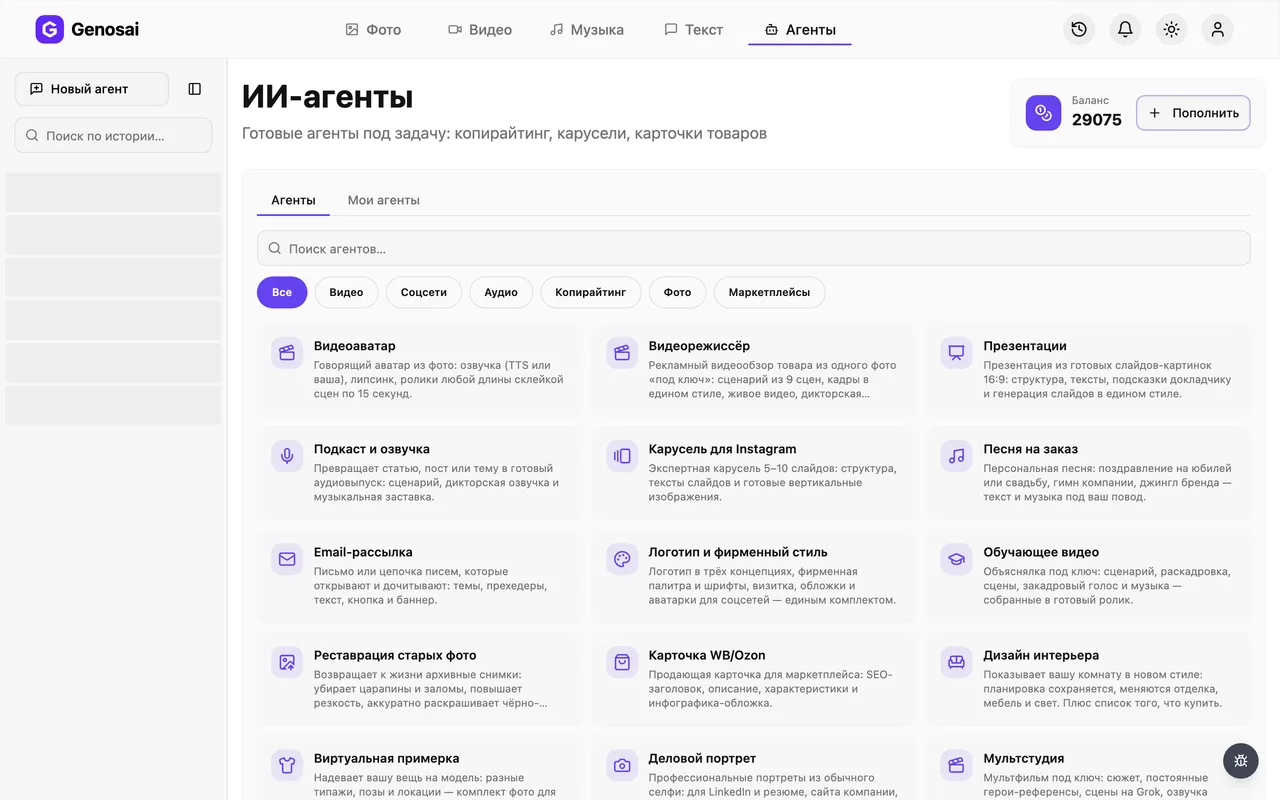
3. Step 3. Find the Presentations agent
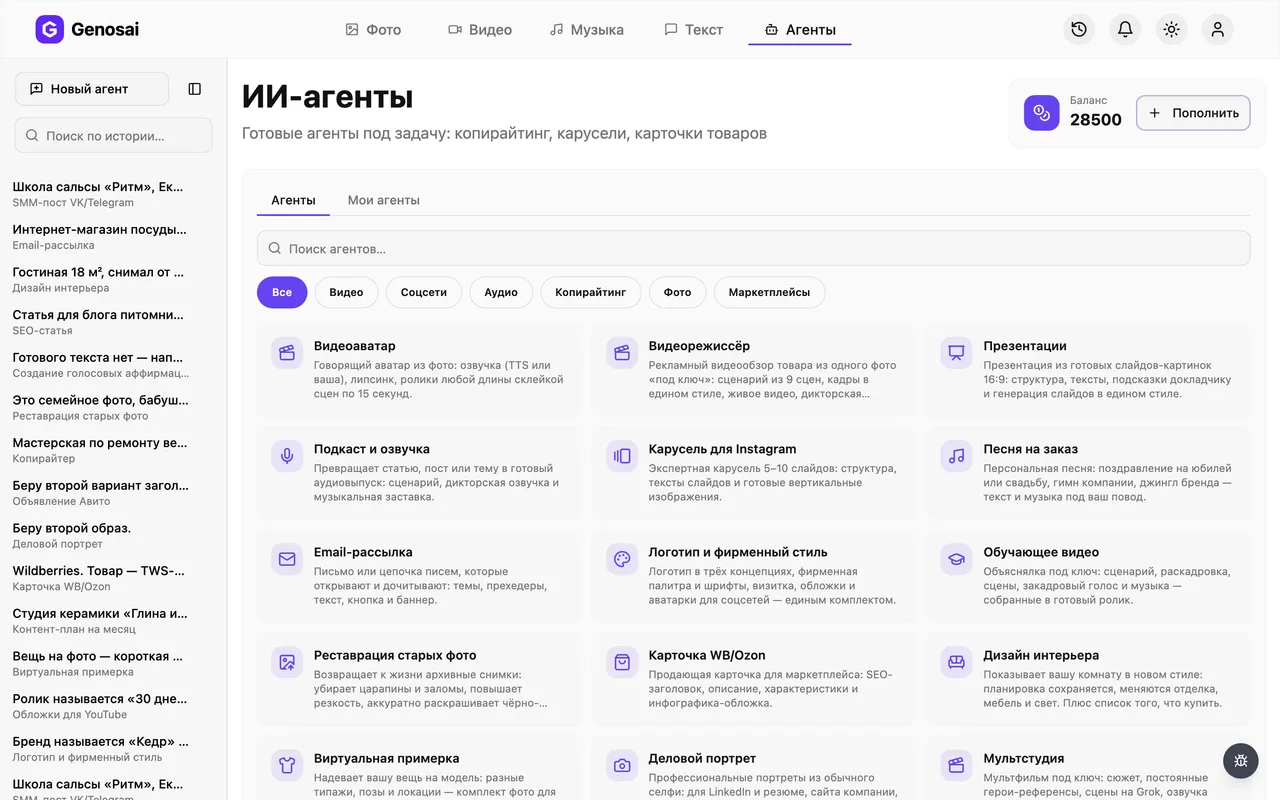
Type presentation into the search box of the agent gallery or open the Social media category. The right card carries a chart icon. Click it and a chat window opens.
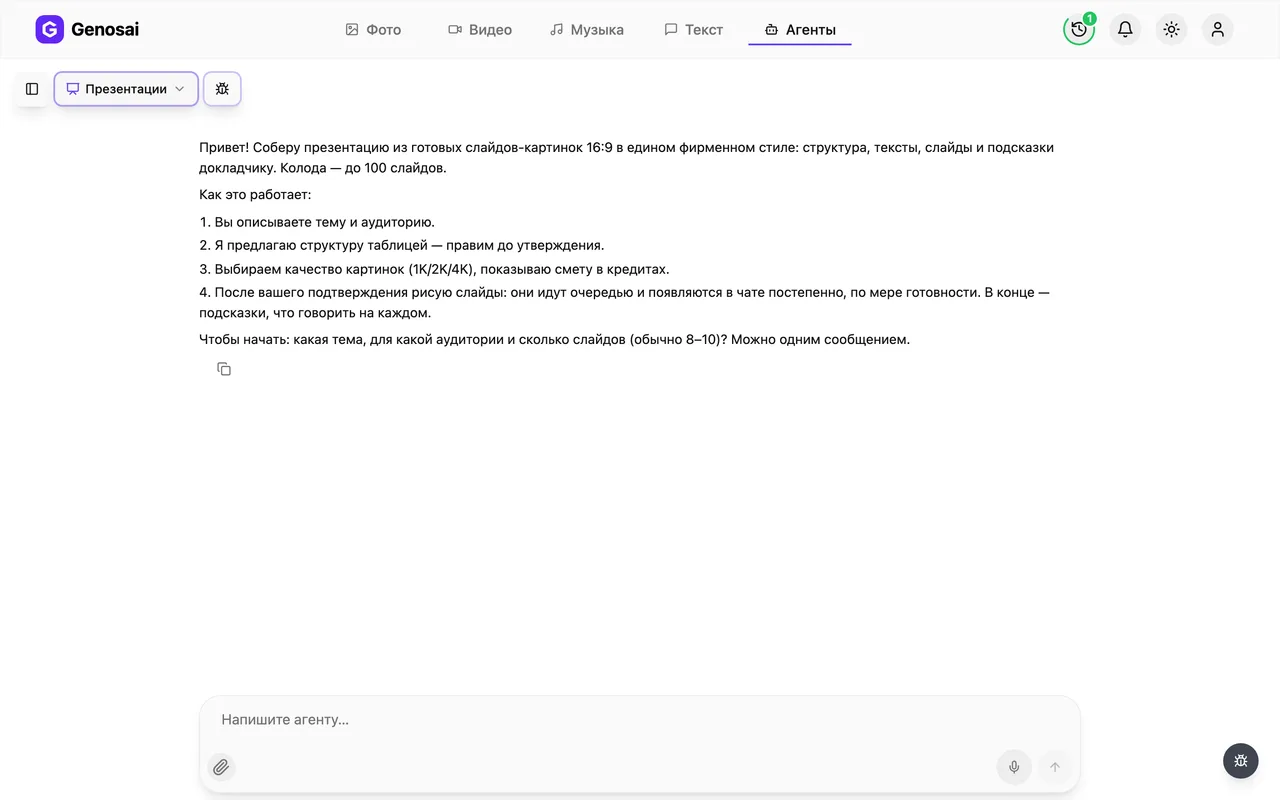
4. Step 4. Read the greeting
The agent introduces itself, explains how the work will go and asks its first question: what is the topic, who is the audience and how many slides do you need. You can answer everything in a single message, in plain language.
5. Step 5. Describe your talk
Write the topic, who will be listening, where you are speaking and how many slides you want. If you already have a draft, paste it straight into the message and the agent will split it into slides. Mention brand colours and mood if they matter.
If you have no idea how many slides you need, just say so. The agent will suggest eight or ten, which fits a fifteen minute talk.
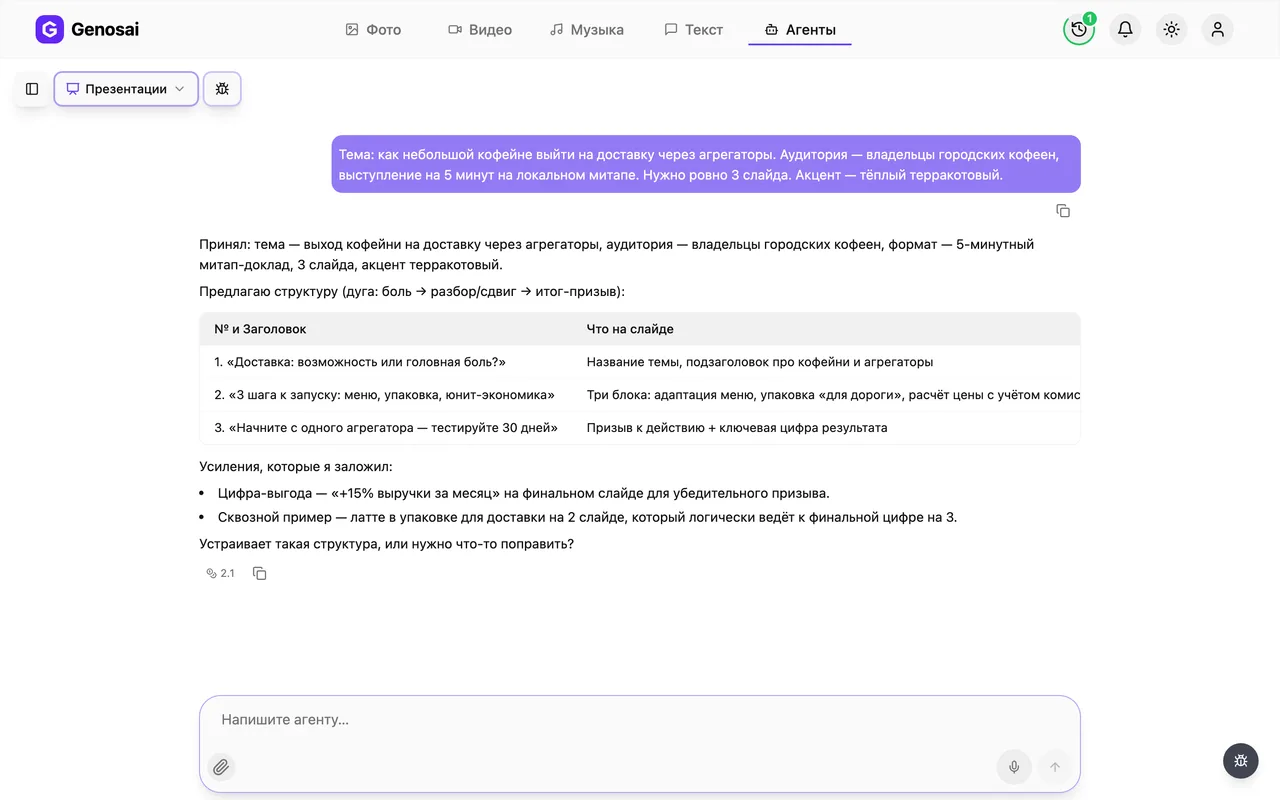
6. Step 6. Approve the outline
The agent sends a table with the slide number, the headline, what appears on the slide, what to say out loud and the visual idea. Read it through and ask for any change you want in wording, order or slide count. Nothing is drawn until you clearly approve it.
This part of the work is free. Rework the outline as many times as you like, credits are only spent on drawing slides.
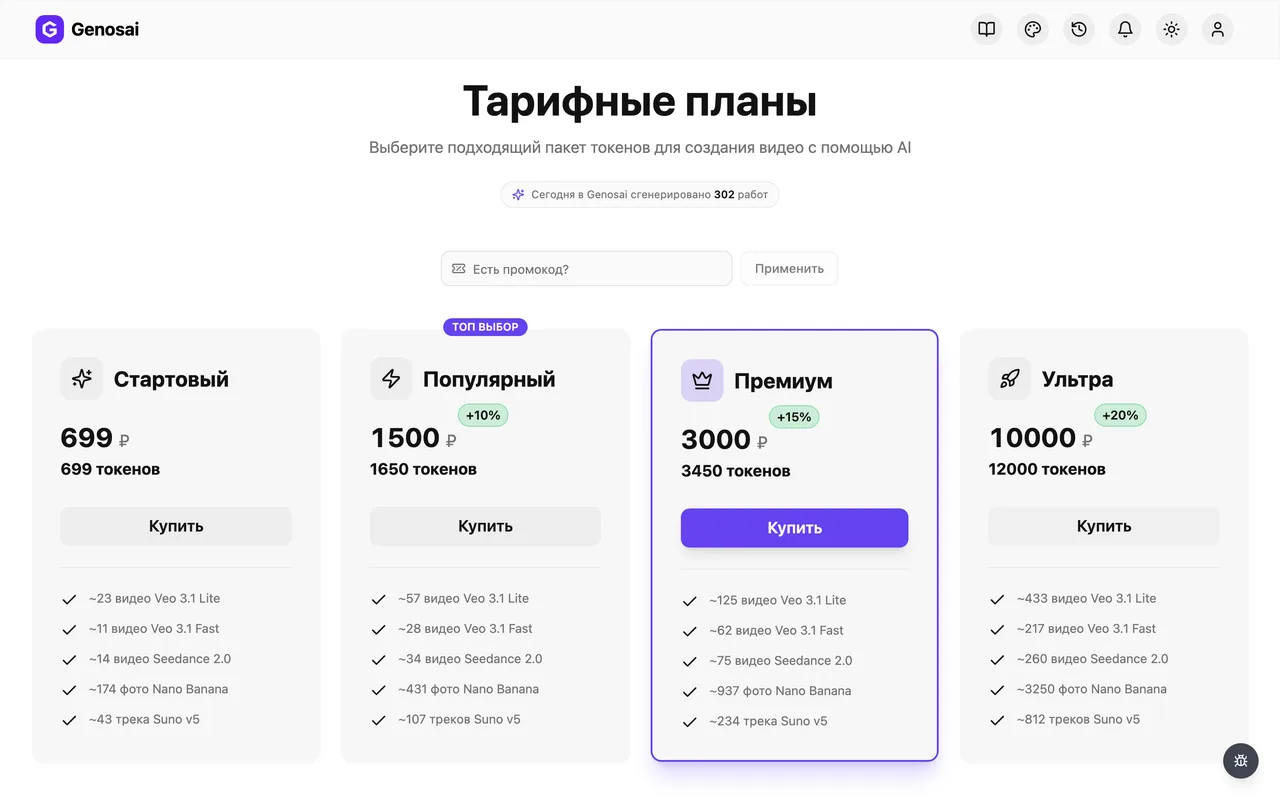
7. Step 7. Pick quality and check credits
Once the outline is approved the agent asks about image quality: standard, high or maximum. Standard is enough for a projector or a video call, higher settings are mainly for print. Glance at your credit balance in the header and top it up if needed.
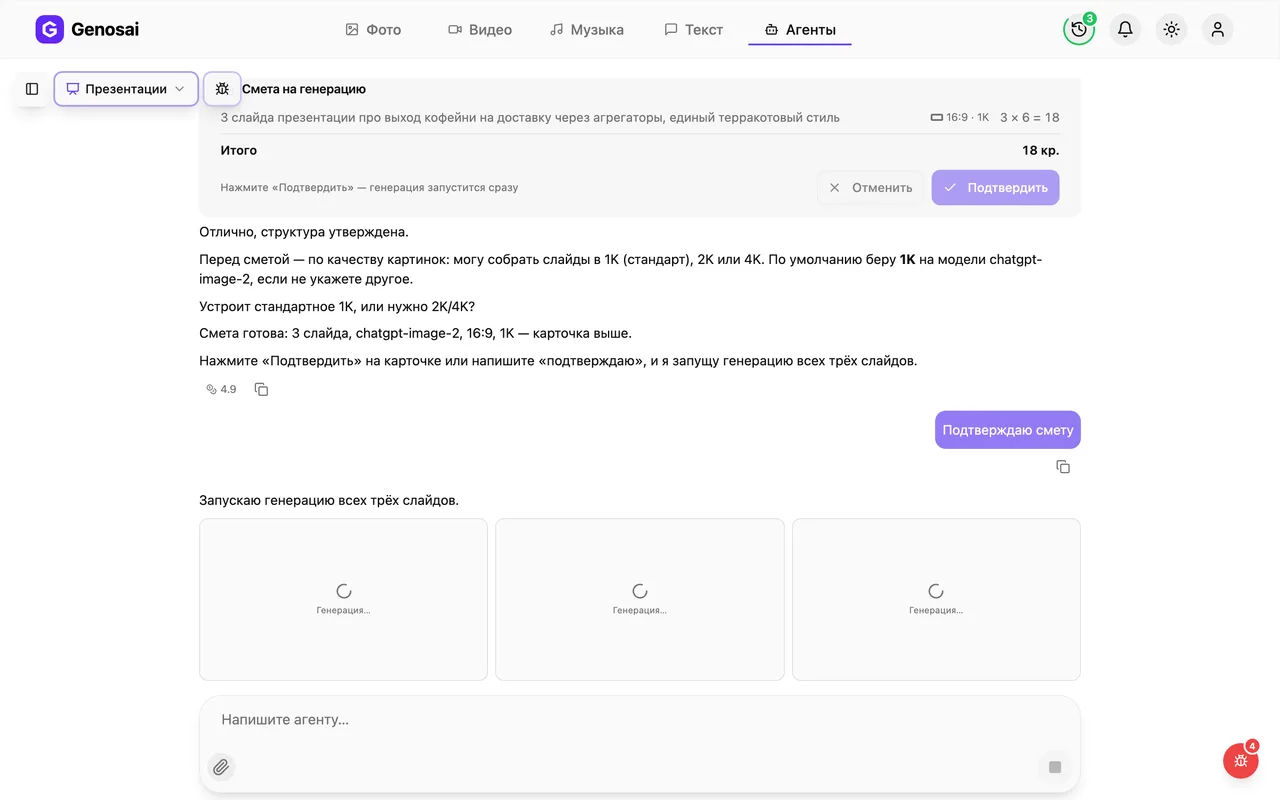
8. Step 8. Confirm the estimate
The agent shows an estimate card: how many slides will be drawn and how many credits that costs. This is the only place where money is spent. Press the confirm button or reply with the single word confirm.
Long replies such as yes, looks great, go ahead are deliberately not treated as approval, so credits are never spent by accident.

9. Step 9. Wait for the slides
Slides are drawn in a queue and appear in the chat one by one as they finish. A ten slide deck takes a few minutes, a large one takes longer. You can close the tab and come back later, the job keeps running.
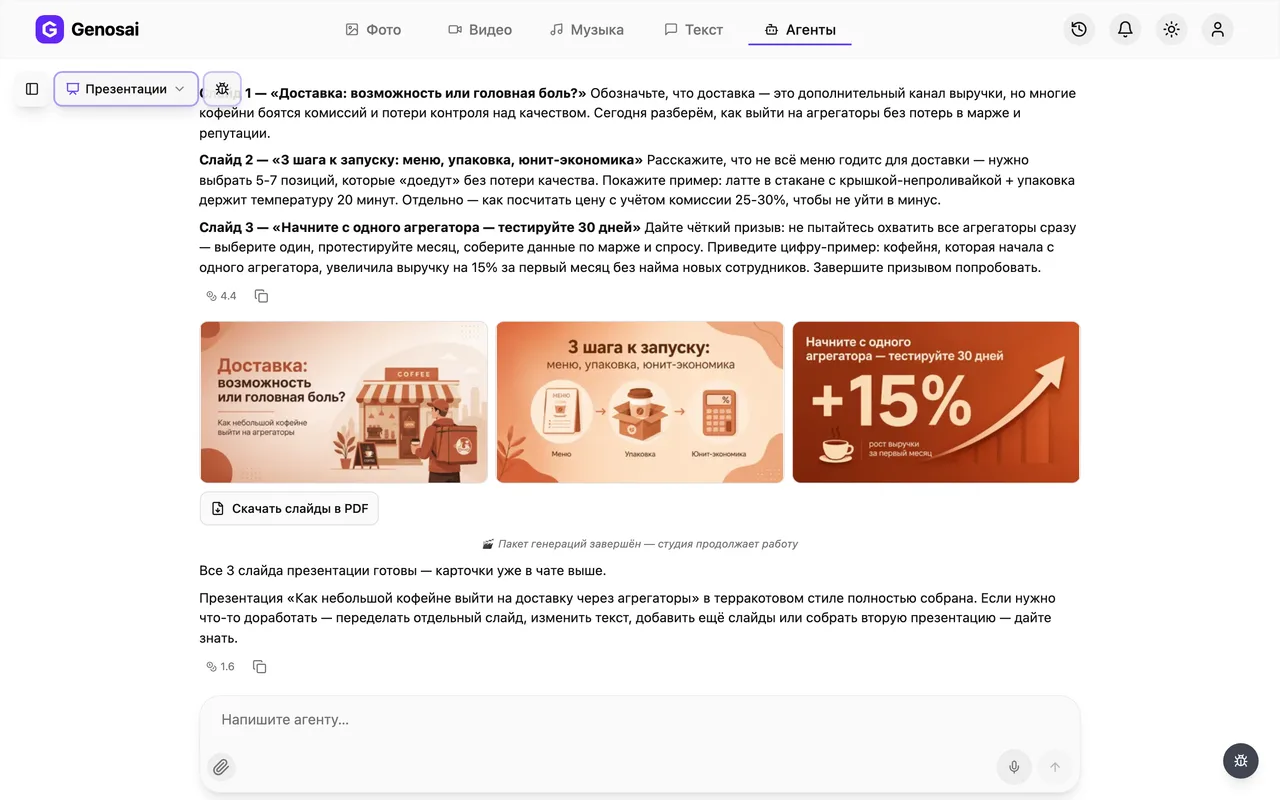
10. Step 10. Collect the deck
To save one slide, click it and use the download icon in the full screen viewer. Once the whole deck is drawn, a Download slides as PDF button appears underneath and saves the presentation as a single file. The speaker notes for every slide arrive earlier, right after the launch. If one slide disappoints you, say so and the agent redraws it under a new estimate.
What this agent does
The Presentations agent turns a topic into a finished deck. It works like a content strategist and a designer in one chat window: first it builds the logic of your talk, then it draws the slides.
The logic always follows the same proven arc. It opens with the problem or the situation that makes the topic matter, moves to the shift and the core idea, then breaks the idea down point by point and closes with a conclusion and a call to action. Slide one is the title, the last slide is the takeaway. Everything in between is your material arranged so the audience can follow without effort.
Slides are drawn as 16:9 images with the headline and short bullet lines printed directly on the picture. The same style base repeats on every slide: background, palette, type treatment and illustration approach. That is why the deck reads as one piece of work instead of a pile of unrelated pictures.
At the end the agent hands over speaker notes. These are not the words already printed on the slide but a spoken script: what to say, which example to use, how to bridge from one slide to the next. Print them out and keep them in front of you while you present.
Who it is for
This agent is for anyone who has something to say and no evening to spend on formatting.
Teachers and trainers who build a new lesson every week. Founders who need a short deck before a partner or investor meeting. Sales people preparing a product story for tomorrow. Students defending a thesis. Employees facing a quarterly report while the designer is busy with something else.
It is also built for people who have never opened an AI tool in their life. The whole conversation happens in ordinary words, with no settings to configure and no special phrasing to learn. If you can write a message in a chat app, you can use this agent.
What to prepare in advance
Only three things are genuinely required: the topic, a sense of the audience and how many slides you want. Everything else the agent invents and shows you for approval.
Useful but optional: a draft or a list of talking points you can paste straight into the chat, your brand colours, one number that proves your point such as hours saved or revenue gained, and a running example or story that carries through the whole talk.
If you have no draft at all, that is fine. Describe the topic in two sentences and the agent will propose an outline you can push back on. Editing that outline costs nothing.
You will also need credits on your balance. Credits are spent on drawn slides only, while the conversation itself costs very little.
Walking through a real conversation
Here is what the exchange actually looks like.
You. I need a deck for a school parents meeting. The topic is how to help a child with homework without a fight. The audience is parents of eleven year olds. Ten slides please, warm and calm colours.
Agent. Got it. Ten slides for parents of eleven year olds, warm and calm style. Here is the outline, take a look at the table.
The table arrives with a row per slide: number and headline, what appears on the slide, what to say out loud and the visual idea. Slide three, for instance, is about evening arguments, carries two short lines on screen, and the speaker column suggests a real life example to tell.
You. Drop slide six and add one about how much time homework really takes in year five. Also make the title on slide one shorter.
Agent. Done. Slide six now covers realistic homework times and the title is shorter. Here is the updated table.
You. Ok, approved.
Agent. Great. Now image quality. By default I build in standard quality, which is more than enough for a projector or a video call. High and maximum cost more and are mostly for print. Shall we keep standard?
You. Yes, standard.
An estimate card then appears: ten slides, standard quality, the price in credits. Nothing has been charged yet. You press the confirm button.
Agent. Launching all ten slides. They are drawn in a queue and will appear in the chat as they finish, so you do not need to keep this tab open. Meanwhile, here are your speaker notes for every slide.
One detail worth remembering: the estimate is confirmed by the system, not by the agent. A chatty reply such as yes, that is perfect, let us go is deliberately not accepted as approval, so your credits are never spent by mistake. Press the button on the card or send the single word confirm.
What it costs
A presentation has no fixed price. The cost is built from the number of slides and the image quality you choose, so the agent calculates an estimate for your specific order and shows it before starting.
The order of magnitude is easy to reason about: a ten slide deck costs about the same as ten images, a twenty slide deck about twice that. Higher quality settings cost more than standard. The chat itself is billed separately and is very cheap, the real credits go into drawing the slides.
The rule to remember is simple. Nothing is charged until you press confirm. You can spend half an hour discussing the outline, rework it five times, change your mind and walk away with your balance untouched.
If a slide fails for a technical reason, the credits for it return to the estimate automatically and the agent reruns just that slide without asking you to pay again.
Common beginner mistakes
The first mistake is skimming the outline table and replying ok. The outline is the skeleton of your talk, and reworking it is free while redrawing slides costs credits. Spend five minutes reading it properly.
The second mistake is ordering forty slides for a fifteen minute talk. One slide is roughly one minute of speech. Extra slides get flipped through in a rush and the credits are already gone.
The third mistake is answering the estimate with a long sentence instead of a short yes. The system waits for the button or the word confirm, and a chatty reply is ignored, which makes it look as if the agent froze.
The fourth mistake is expecting an editable PowerPoint file. The agent delivers images with the text baked in. That is convenient for presenting, but you cannot fix a single letter without redrawing the slide.
The fifth mistake is not proofreading before you go on stage. AI models still misspell rare terms and proper names now and then. Flip through the finished deck with your own eyes before the audience does.
Why this beats building the deck yourself
Making a deck by hand eats an evening, sometimes two. You invent the structure, hunt for images, then fight with alignment and font pairings. The agent covers the same ground in minutes and in a single consistent style.
The second gain is in thinking rather than in pictures. The agent asks about the audience and the goal of the talk, then builds a dramatic arc: problem, shift, breakdown, conclusion. That arc is exactly what homemade decks that simply list facts tend to miss.
The third gain is the speaker notes. Few people write their own script in advance, so they end up reading the slides out loud. With notes in hand you speak like a human being and the slide stays a backdrop.
Finally, a deck is easy to redo. If the style misses or the audience changes, you return to the same conversation, ask for a different treatment and the agent rebuilds the deck.
Agents that pair well with this one
A presentation rarely travels alone. Around it there is usually a whole package of material.
When the talk needs a written version for your site or a newsletter, hand the same topic to the Copywriter. When you want the topic to bring people in from search engines, expand it with the SEO Article agent.
If the deck is really a lesson, the natural next step is the Explainer Video agent, which turns the same structure into a video. If your material is easier to listen to than to watch, record it with Podcast and Voice-over.
Teams without a visual identity should start with the Logo and Brand Kit agent, get a palette, and then name those colours when briefing the presentation agent. The announcement of your talk can be written by the Social Post agent.
To see everything the studio can do, browse the catalogue of all agents.
FAQ
Do I need any experience with AI tools
No. You answer the questions of the agent in plain language, the same way you would text a colleague. Every technical decision is made by the agent, and you only choose between simple options.
What format do the slides arrive in
Every slide comes as a separate 16:9 image with the text already drawn on it. You can present them one by one, save the whole deck with the Download slides as PDF button or paste them into PowerPoint and Google Slides.
Can I edit the text on a finished slide
Individual letters on an image cannot be edited. If a slide has a typo or clumsy wording, ask the agent to redraw that slide with new text. Redrawing one slide costs the same as one image.
How many slides should I order
For a ten or fifteen minute talk eight to ten slides is plenty. For a full lecture or a training session take twenty or more. One session can produce up to one hundred slides.
Can the deck follow my brand colours
Yes. Name your colours in words or hex codes at the very start of the conversation and the agent bakes them into the style base shared by every slide.
What happens if one slide fails to generate
Credits for a failed slide return to the confirmed estimate automatically and the agent restarts only that slide at no extra cost. Usually you do not even notice it happened.
How much does one presentation cost
There is no fixed price. The cost depends on the number of slides and the image quality you pick, and the agent shows the exact figure in credits in the estimate before anything starts.