How to Make a Talking Video From a Single Photo
The Genosai Video Avatar turns a photo of a person into a talking clip: the character speaks your text with lip movement and expression. The voice is generated by the video model itself, so no separate narration or microphone is needed. Long text is split into scenes and joined into one file.
Updated: August 10, 2026
- No camera, no microphone — One photo and your text are enough. You do not film yourself, set up lights or record audio.
- The voice comes with the video — The same model that draws the character also speaks. There are no separate voice actors to order.
- Any length of clip — A single scene runs up to fifteen seconds, but longer text is split on complete sentences and joined into one file.
- An avatar can be drawn for you — No photo of your own? Describe the look and the studio creates a character that stays the same across all your clips.
- One estimate for everything — The cost of all scenes, optional music and the final assembly is shown at once, before any work starts.
- Timing is calculated for you — The agent derives scene lengths from your text at normal speaking speed and shows the maths line by line.
Step-by-step guide
1. Step 1. Create your account
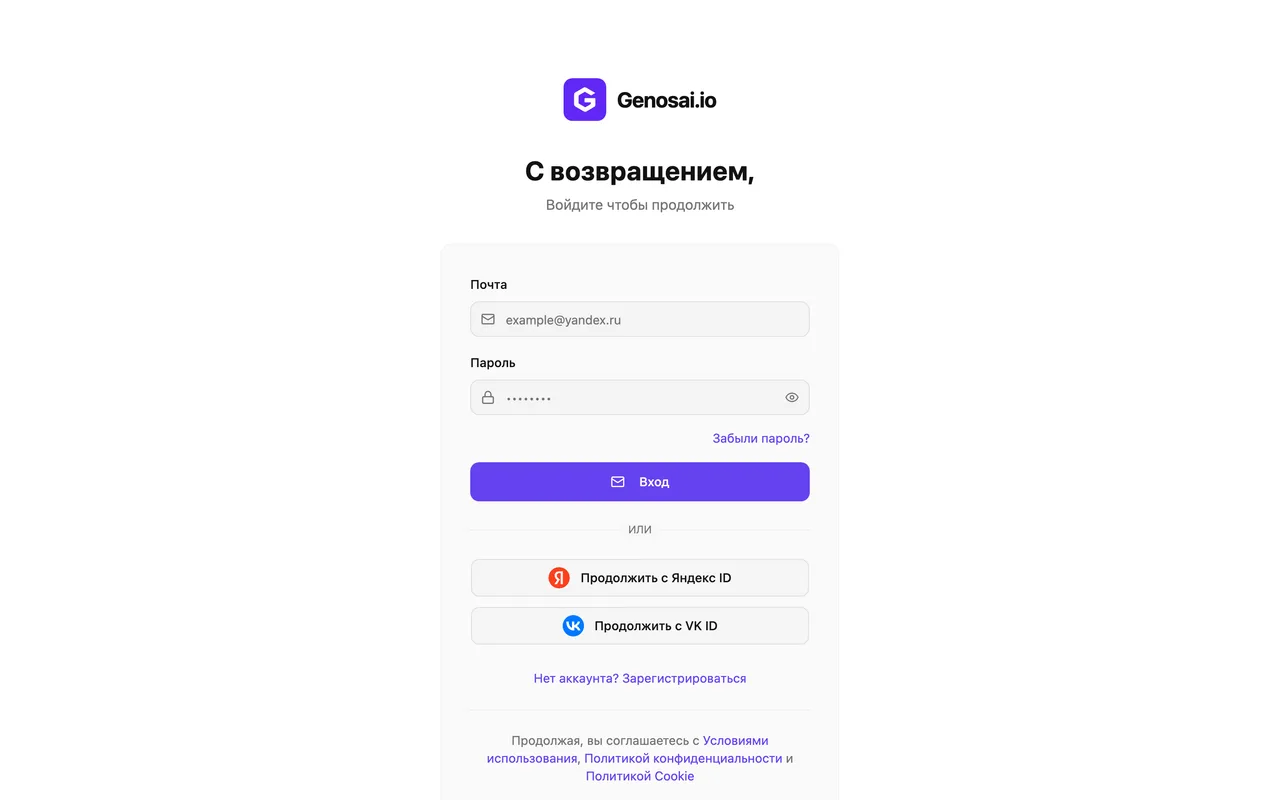
Open the Genosai site and sign up with an email address or a one click login. Registration is free and no bank card is needed. New users get a small starter balance of credits so you can try the service first.
2. Step 2. Open the studio
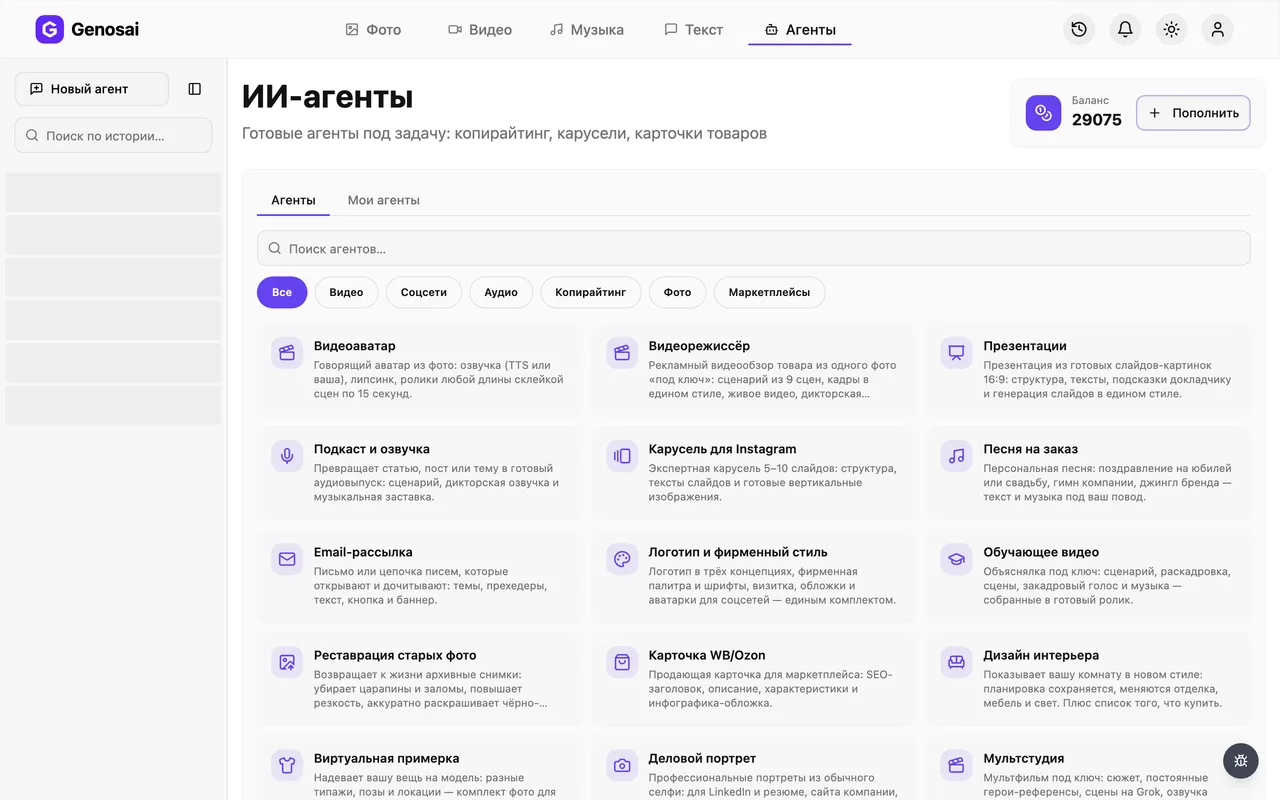
After logging in you land in the studio, which is your workspace. In the top menu find the Agents tab and click it. This opens a gallery of ready made assistants, each trained for one job.
3. Step 3. Find the Video Avatar
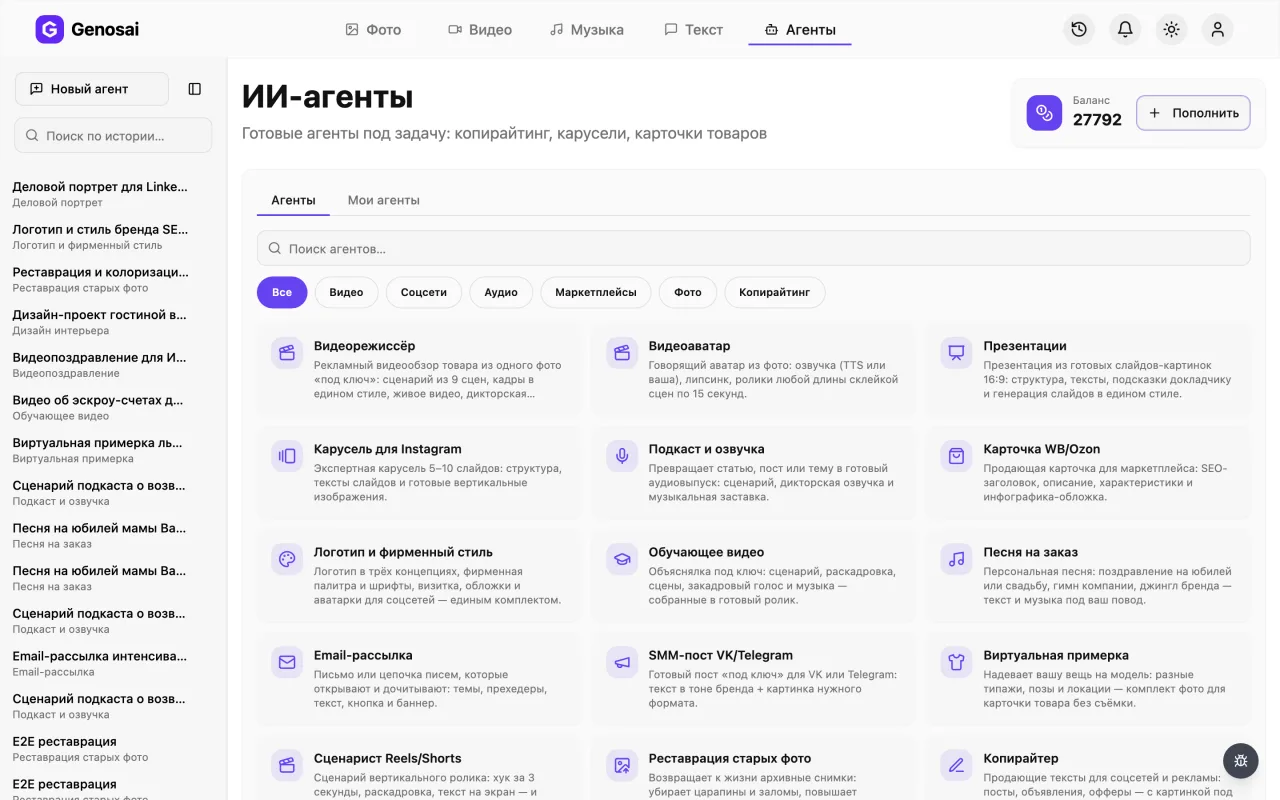
In the gallery pick the Video category or type avatar into the search box. Click the card with the talking head to open the chat. Each agent works in its own conversation and remembers only its own task.
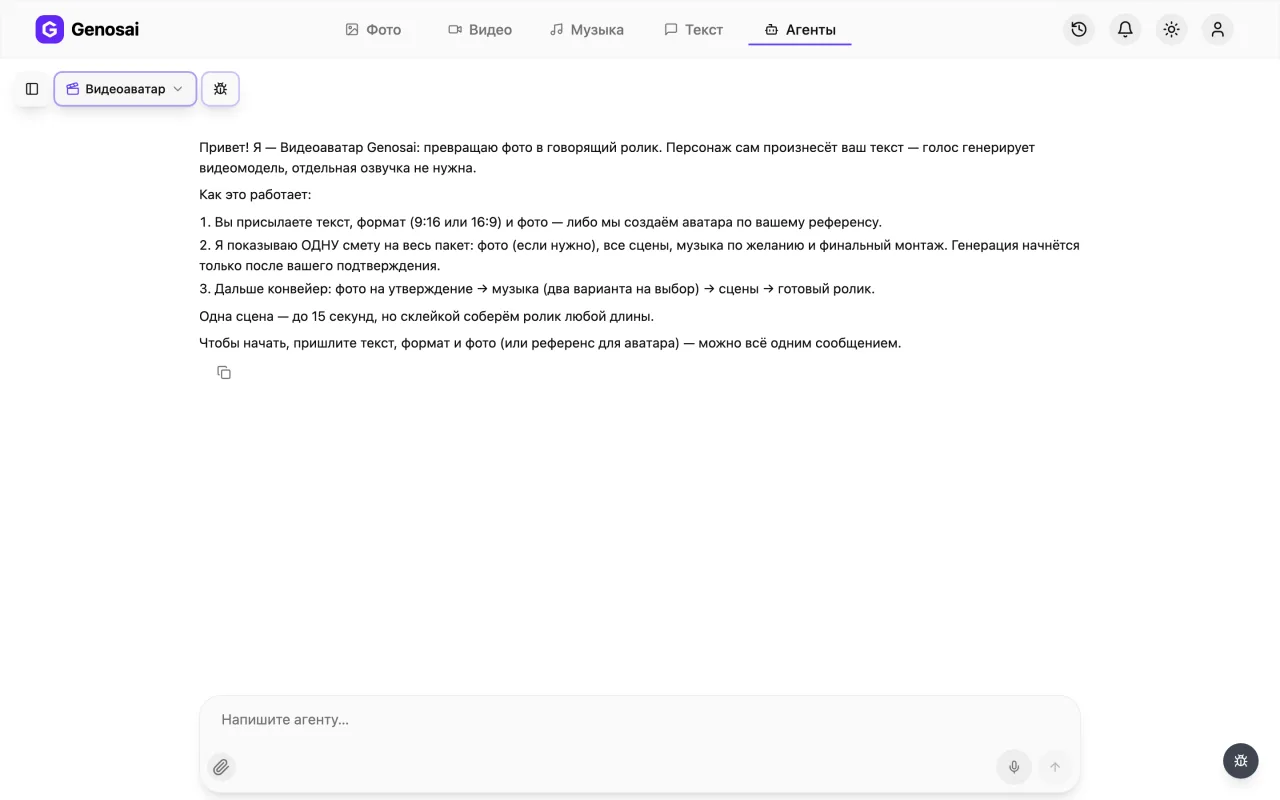
4. Step 4. Send the text and the format
The agent asks three things: the text your character will say word for word, the format, vertical 9:16 or landscape 16:9, and whether you want background music. All of it can go in one message.
5. Step 5. Attach the photo
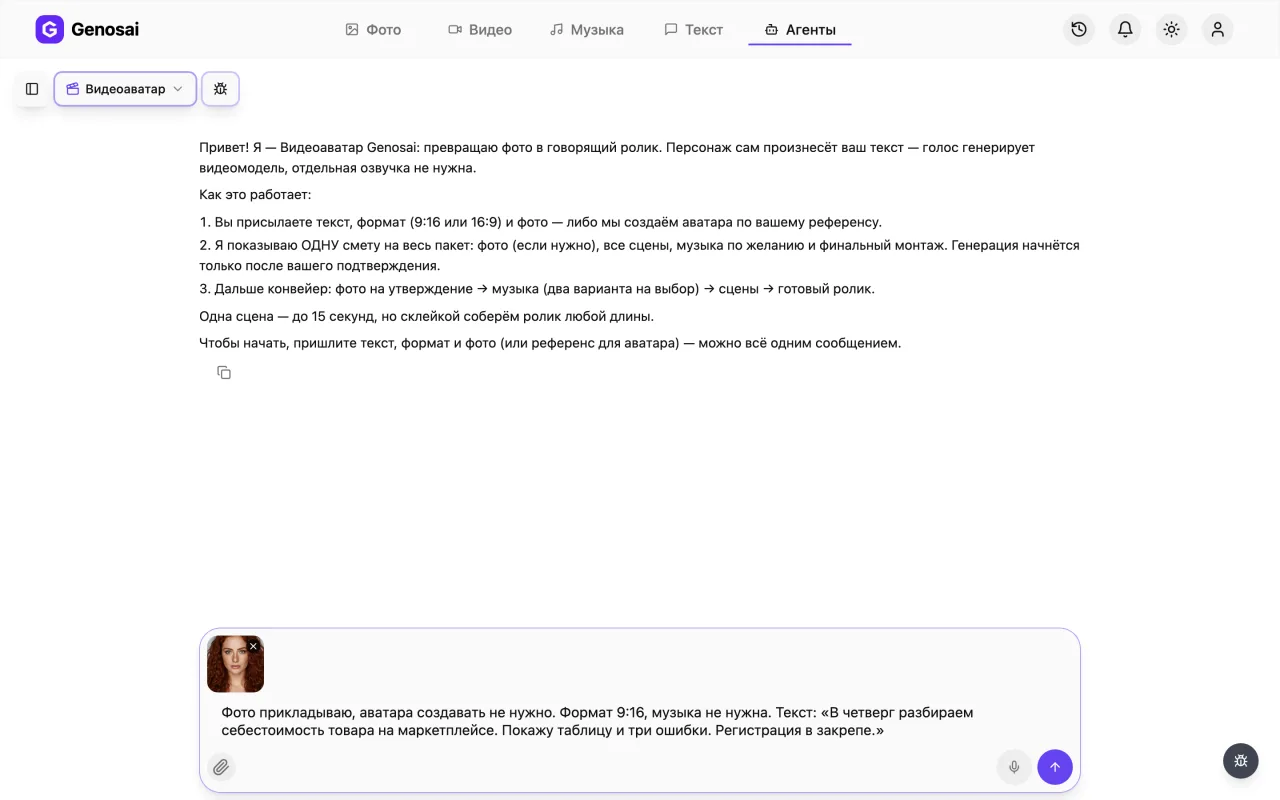
Click the paper clip and pick a portrait: face on, clearly visible, looking at the camera, evenly lit. Profiles, group shots and dark glasses will not work. No photo of your own? Describe the look and the studio will draw an avatar for approval.
The face has to be visible straight on. How convincing the lip movement looks depends directly on the photo.
6. Step 6. Check the timing calculation
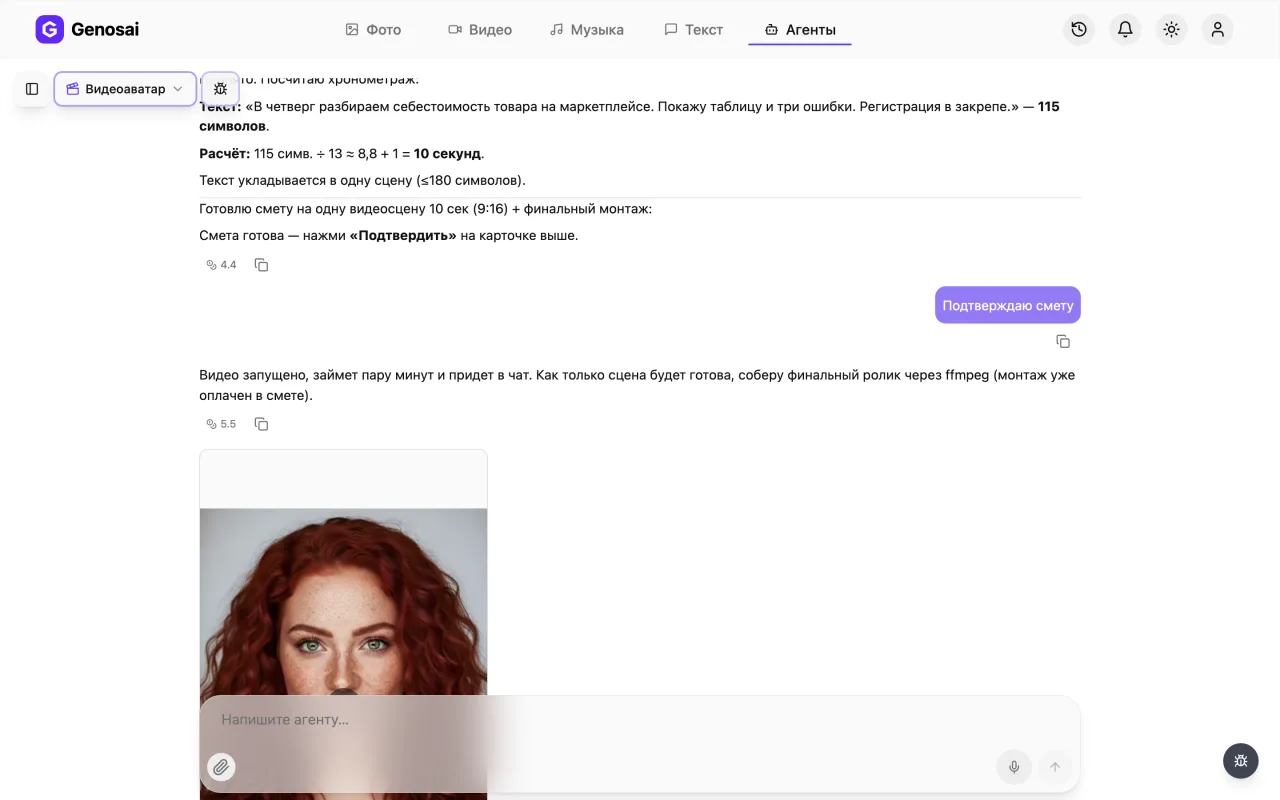
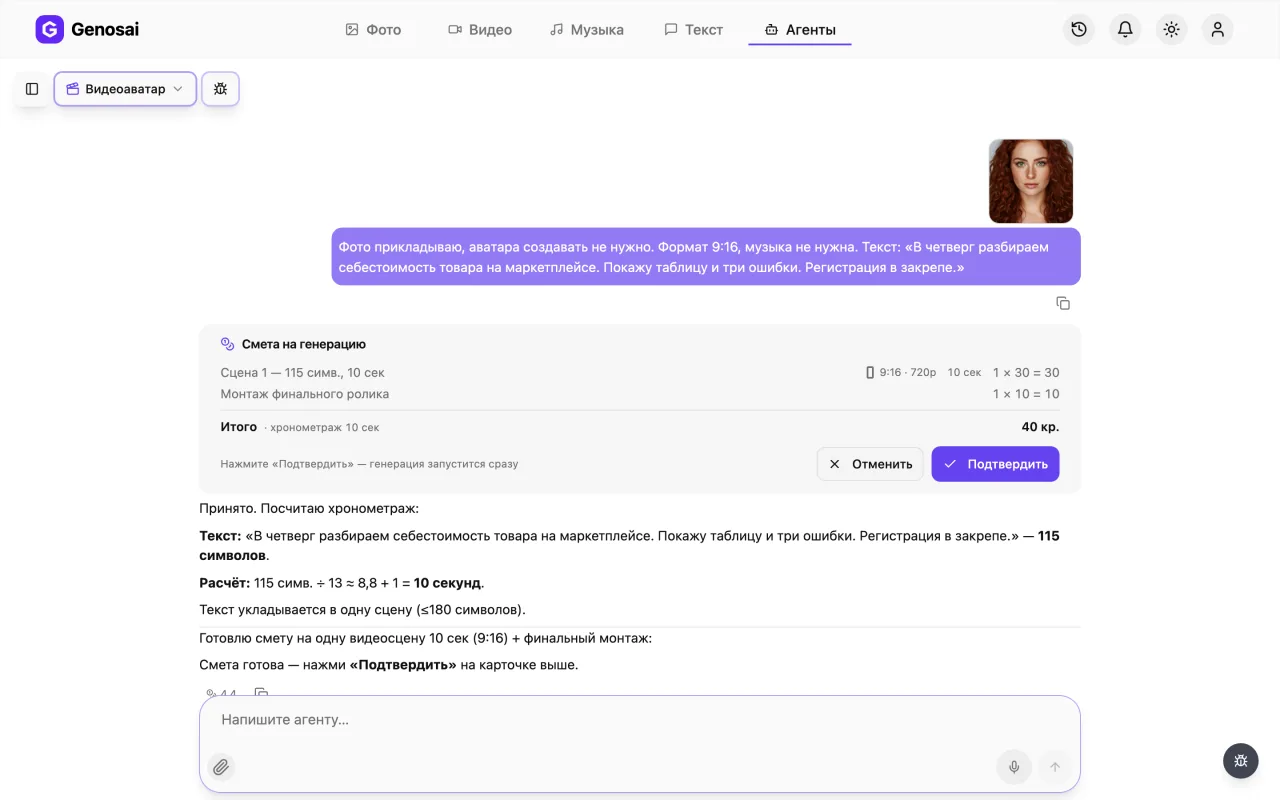
The agent works out the length itself, at roughly thirteen characters per second, and shows the maths line by line: scene one, 118 characters, about 10 seconds. You never name the number of seconds, and to shorten the clip you shorten the text.
7. Step 7. Check your credit balance
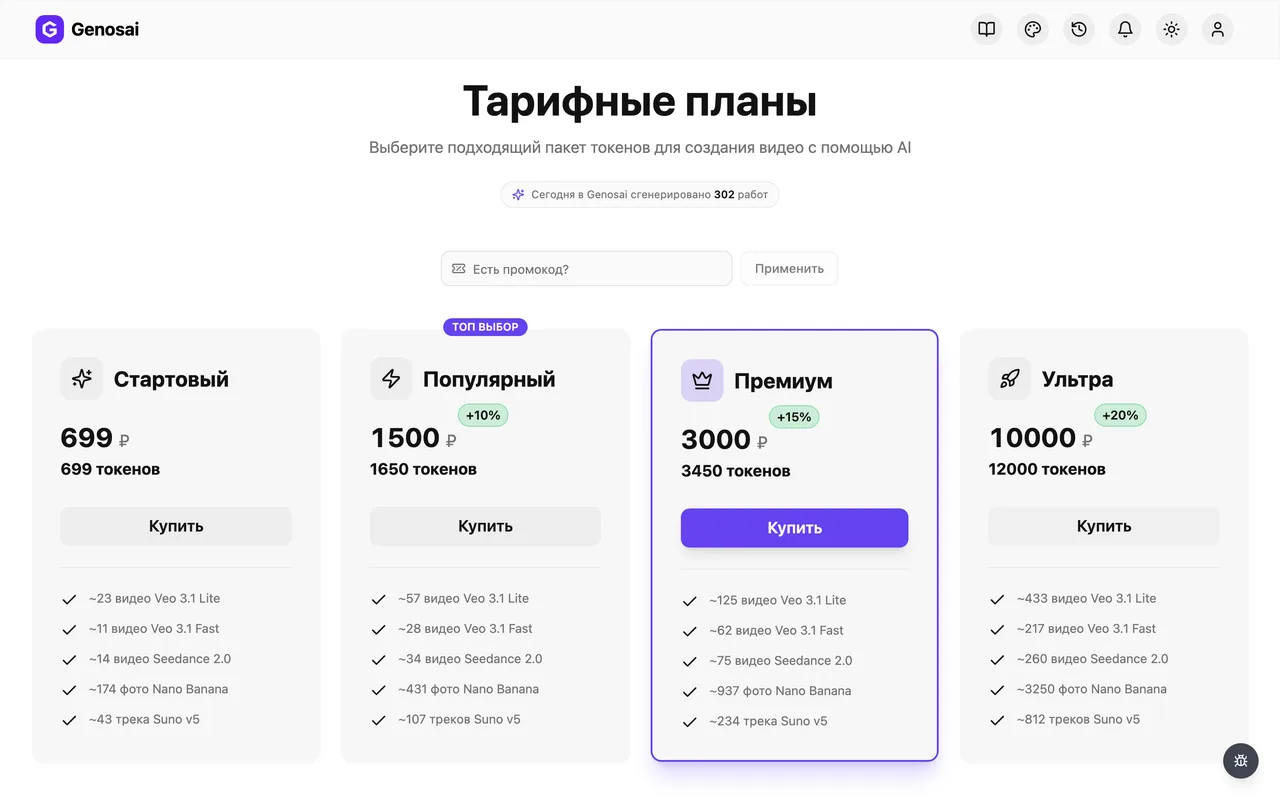
Credits are the internal currency that pays for generation. The balance sits in the studio header next to the top up button. Video uses noticeably more credits than images, so check before you start.
8. Step 8. Confirm the estimate
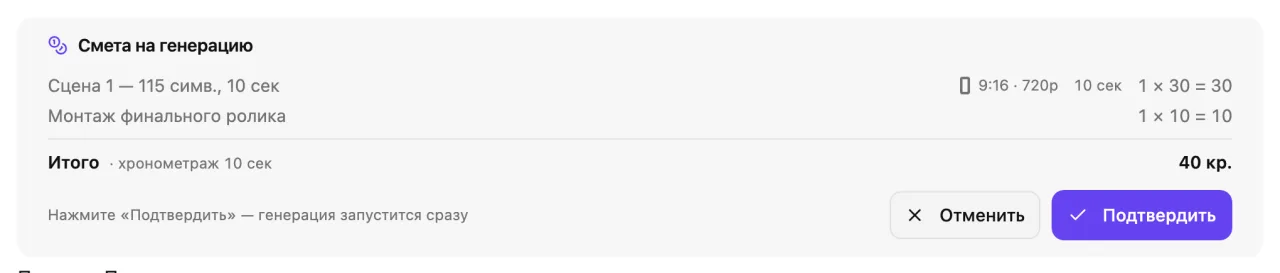
Here the estimate is one card for the whole package: every scene, optional music and the final assembly. That is convenient, because the total is visible before anything starts. Nothing is charged until you press Confirm.
The confirmation is registered by the system, not the agent. Press the button on the card or write the single word confirm.
9. Step 9. Wait for the scenes
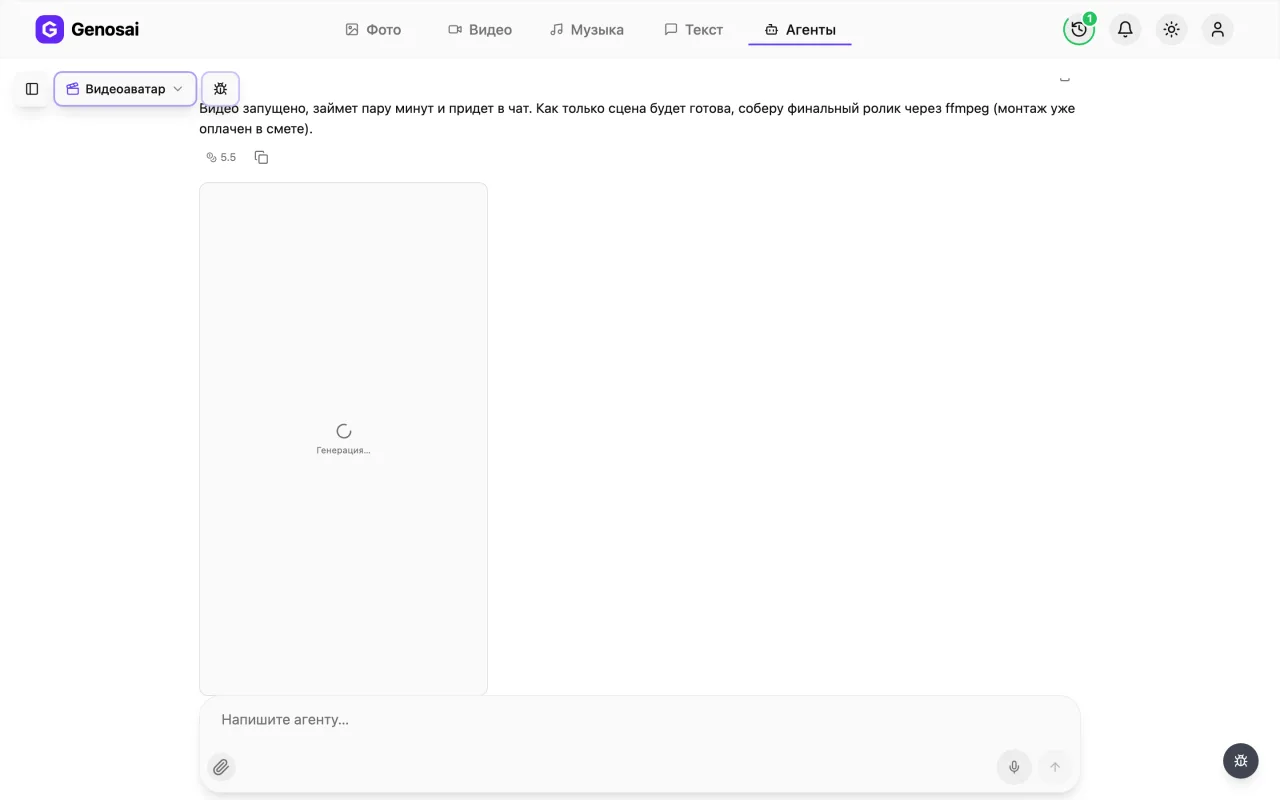
After confirmation the studio renders the scenes one by one. Each takes a few minutes: the model draws the frames and synchronises the lips with the speech at the same time. You can close the tab and come back later.
10. Step 10. Collect the finished clip
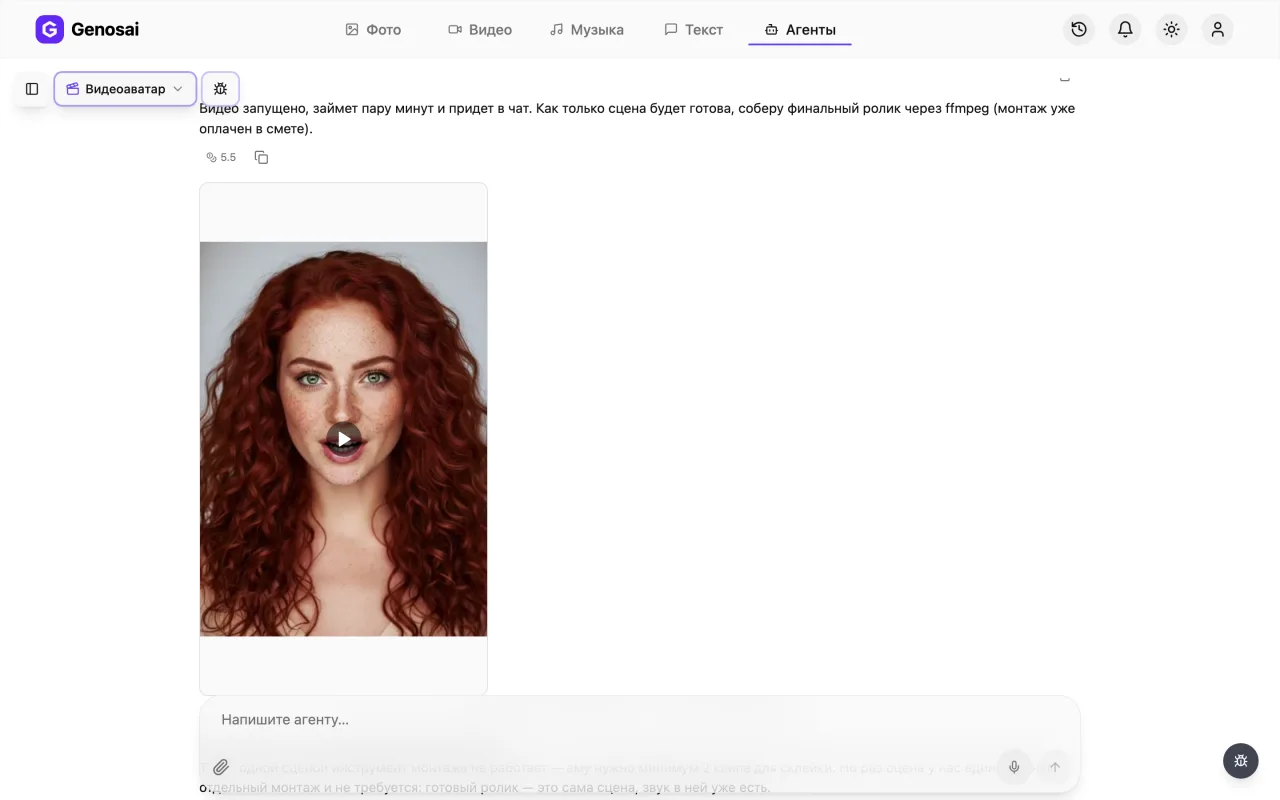
The edit suite joins the scenes into one file and posts it in the chat. Click the clip to open it full screen and download. If one scene came out wrong, say so in words and the agent regenerates only that one under a separate estimate.
What This Agent Does
The Genosai Video Avatar turns a photograph of a person into a talking clip. You send a picture and some text, and you get back a video where the character says your words, with lip movement, expression and a voice.
The voice here is generated by the video model together with the picture. This matters to understand up front: there is no separate narration, no choice of voice actors and no microphone recording in this agent, and there never will be. The model decides how the character sounds based on their appearance and the text. If you need one specific voice or your own recording, that is a different job and a different tool.
The photo can be yours or invented. If you do not have a picture, describe how the character should look and the studio will draw an avatar, show it for approval and use it from then on.
One scene runs no longer than fifteen seconds, but the length of the clip is not limited: long text is split into meaningful chunks, one scene is rendered for each, and they are joined into a single file. The format is vertical 9:16 or landscape 16:9.
Who It Is For
Experts who run social accounts but do not want to appear on camera, or cannot. Plenty of things get in the way: no lighting, no time, nowhere comfortable to film at home, or simply not liking the sound of your own voice. Here one photograph is enough.
People producing content at volume: announcements, answers to questions, short tips. The text takes five minutes to write and the clip assembles itself with no camera and no editing.
Companies use it for statements, instructions and welcome videos on a website. Online schools use it for lessons and notices. It also suits anyone working in several languages: the text changes, the character stays the same.
And separately, anyone who needs a fictional presenter. The avatar can be drawn from scratch, so it resembles no real person, yet stays identical across every clip.
What to Prepare First
Preparation takes a couple of minutes and saves a lot of back and forth.
First, the text. Exactly what the character will say, word for word. Not bullet points or an outline, but finished speech. Write it the way you talk: short sentences, no tangled clauses, and no abbreviations, because the model reads them literally.
Second, the photograph. The person face on, the face clearly visible, eyes to the camera, even lighting. Group shots, profiles and dark glasses will not work. If you have no photo of your own, prepare a description of how the avatar should look.
Third, the format. Vertical 9:16 for Reels, Shorts and stories, landscape 16:9 for a website or YouTube.
Fourth, whether you want background music. If yes, name a mood or a style and the agent will offer two options.
A hint about length: speech runs at roughly thirteen characters per second. Text up to a hundred and eighty characters is a single scene. A thousand characters is about a minute and a half of finished video. You do not have to calculate this yourself, the agent does it and shows the working, but it helps to estimate the scale in advance.
If the text is not written yet, put it together with the copywriter and bring the finished speech here.
A Walk Through the Conversation
Here is the real sequence of messages so you know what to expect.
Agent: Hello! I am the Genosai Video Avatar: I turn a photo into a talking clip. The character says your text themselves, the voice is generated by the video model, no separate narration needed. To start, send the text, the format and a photo, or a reference for an avatar.
You: Photo attached. Vertical format. Text: "On Thursday we break down how to calculate product cost on a marketplace. I will show my spreadsheet and three mistakes that put sellers in the red. Registration link is in the pinned post." No music.
Agent: Photo received. Calculating the timing: Scene 1 — 118 chars, about 10 sec. Scene 2 — 112 chars, about 10 sec. Scene 3 — 62 chars, about 6 sec.
Three scenes, roughly twenty six seconds. Here is the estimate, one card for the whole package including the final assembly. Nothing is charged until you confirm.
You: Can it be shorter?
Agent: Shortening the text, the timing recalculates automatically. Option: "On Thursday we break down product cost on a marketplace. I will show the spreadsheet and three mistakes that put sellers in the red. Registration in the pinned post." That is two scenes, about eighteen seconds. Does that work?
You: Yes, confirm.
Agent: Starting the scenes… Done, the edit suite has joined the clip. Here is your file.
Notice two things. Nobody asks you for seconds: the agent derives the length from the text, and to shorten the clip you shorten the words. And the estimate here is a single card for the whole package rather than stage by stage, which is convenient because you see the total before anything starts.
What It Costs
There is no fixed price. The cost depends on the number of scenes, their length, whether an avatar is drawn from scratch and whether music is ordered. The final assembly is a separate line in the estimate too, at a small fixed price.
The estimate is one card for the whole package and appears right after the brief. That is convenient: you see the full amount before anything is launched.
The conversation costs pennies, so editing, shortening and rewriting the text is effectively free. Credits go on generation only. Video costs several times more than images, because the model draws dozens of frames per second and synchronises the lips with the speech on top of that.
The main lever here is the length of the text. A two scene clip costs half of a four scene one. If the total looks high, cut the speech and the agent recalculates the timing and the estimate.
Until you press Confirm, nothing leaves your balance.
Common Beginner Mistakes
Asking to pick a voice or send in their own audio. That option does not exist here: the voice is inseparable from the video and is generated by the same model. It is not a setting, it is how the technology works.
Sending bullet points instead of speech. The agent says exactly what you wrote. A list of points becomes a list of points read aloud.
Attaching an unsuitable photo: a profile, a group shot, dark glasses, a face in shadow. The model needs the face straight on, otherwise the lips move unconvincingly.
Leaving abbreviations, digits and foreign initialisms in the text. The model reads them literally and they come out wrong. Write them out in words.
Trying to set the length in seconds. The text sets the length, not your preference. Want it shorter, cut the words.
Ordering one long three minute monologue. Technically it assembles, but a talking head beyond a minute is hard to watch. Better to split it into several clips.
Why This Beats Doing It Yourself
You could take a video model directly and try to animate a photo. But then you have to count how many seconds each phrase takes, cut the text so that chunks do not break mid thought, respect the fifteen second ceiling per scene, and then join the files.
The agent does this arithmetically: it counts characters, splits on complete sentences, assigns a duration to each scene and assembles the final file itself.
The second advantage is predictable spending. The estimate is single and shown before the work rather than accumulating as you go. You see what the clip will cost while cutting the text is still free.
Works Well With
A talking clip is usually part of a bigger job, so other assistants work alongside it.
The text for the avatar is easy to put together with the copywriter. The caption for the post can be written by social media post, and a mailing by email newsletter.
If you need a product ad rather than a talking person, look at the video director, which builds a full ad from a product photo. For a raw customer style clip there is the UGC video ad, and for a teaching format the explainer video. A good portrait for the avatar can be made with headshot studio.
The full list of assistants with descriptions lives on the all agents page, where you can also see which ones work with video and which with text and images.
FAQ
Can I choose the voice or upload my own recording
No. The voice is inseparable from the video: the same model that draws the character also speaks, based on the appearance and the text. There are no voice actors to pick, no audio upload and no microphone recording in this agent. That is how the technology works, not a setting.
What kind of photo works
A person face on, clearly visible, looking at the camera, evenly lit, without dark glasses. Profiles, group photos and shots in shadow will not do: the model needs to see the face, otherwise the lip movement looks wrong.
What if I do not have a photo
Describe how the character should look and the studio draws an avatar, shows it for approval and then uses it. Such a character does not resemble anyone real and stays identical across all your clips.
How do I set the length of the clip
You do not, directly. The text sets the length. Speech runs at roughly thirteen characters per second and the agent calculates the timing itself. To make the clip shorter, shorten the words rather than naming seconds.
How long can a clip be
A single scene runs up to fifteen seconds, but the overall length is not limited: long text is split on complete sentences and joined into one file. A thousand characters is roughly a minute and a half of finished video.
Why should I avoid abbreviations and digits
The model speaks the text literally. Things like 2x, St. and initialisms come out strange or plain wrong. Write them out in words instead.
What does it cost in money
There is no fixed price: it depends on the number of scenes, their length, whether an avatar is drawn and whether music is ordered. The estimate is one card for the whole package, shown before work starts, and money is only taken after you confirm.